
How to Set Up a WordPress Site:
A Complete Beginner's Guide
If you've never built a website before, the process can feel a little overwhelming. There are a lot of terms being thrown around — hosting, domains, WordPress, plugins — and it's hard to know where to start.
This guide breaks it down into simple steps. By the end, you'll have a working WordPress site up and running. No coding required. No technical background needed. Just follow along.
First, Let's Clear Up Some Confusion
A lot of people hear "WordPress" and assume it's one thing. It's actually two different things, and it's important to know the difference before you start.
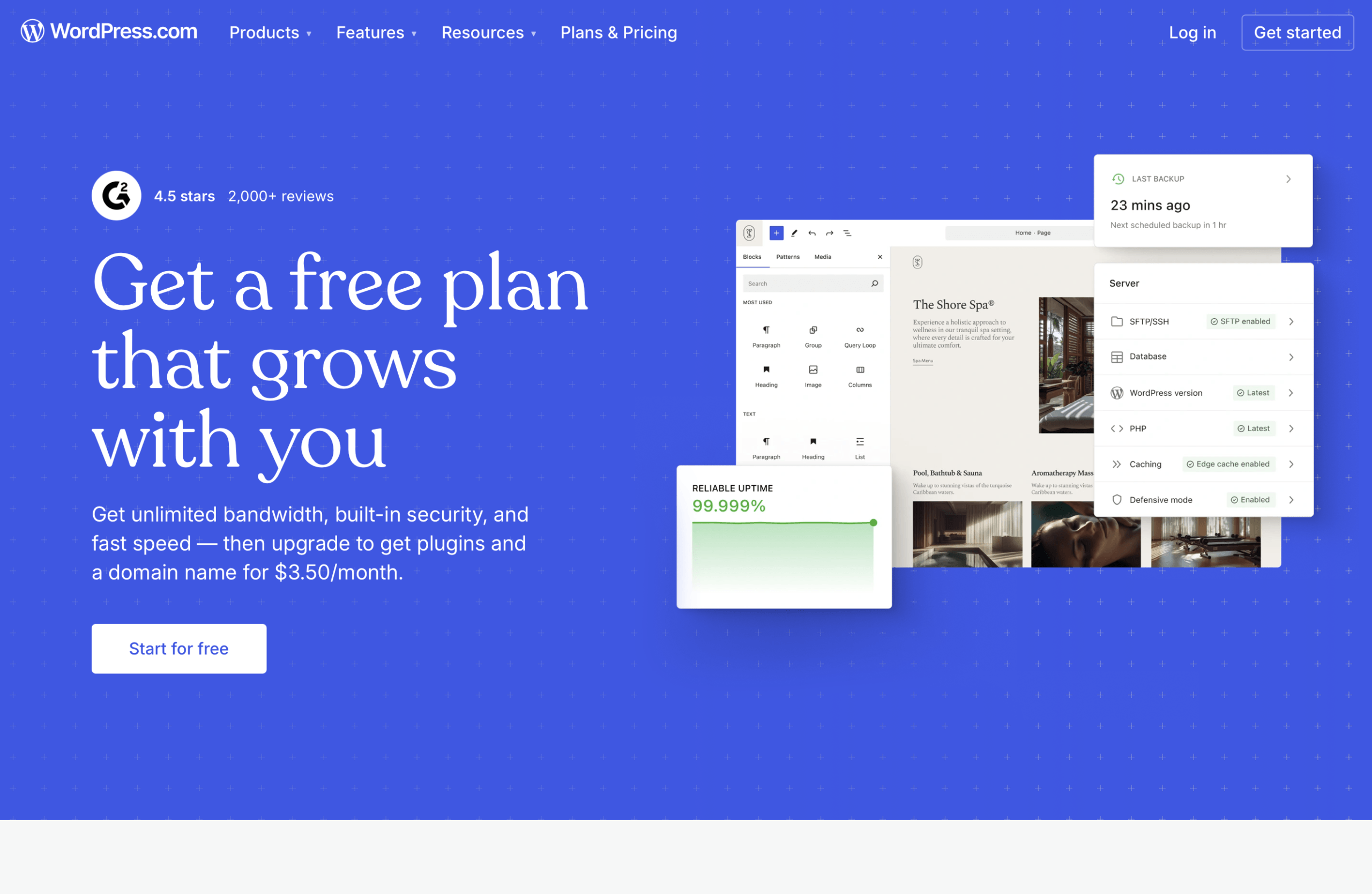
WordPress.com is a hosted service. You sign up, pick a plan, and WordPress handles everything behind the scenes. It's convenient, but you have limited control over your site and you're subject to their rules and pricing.
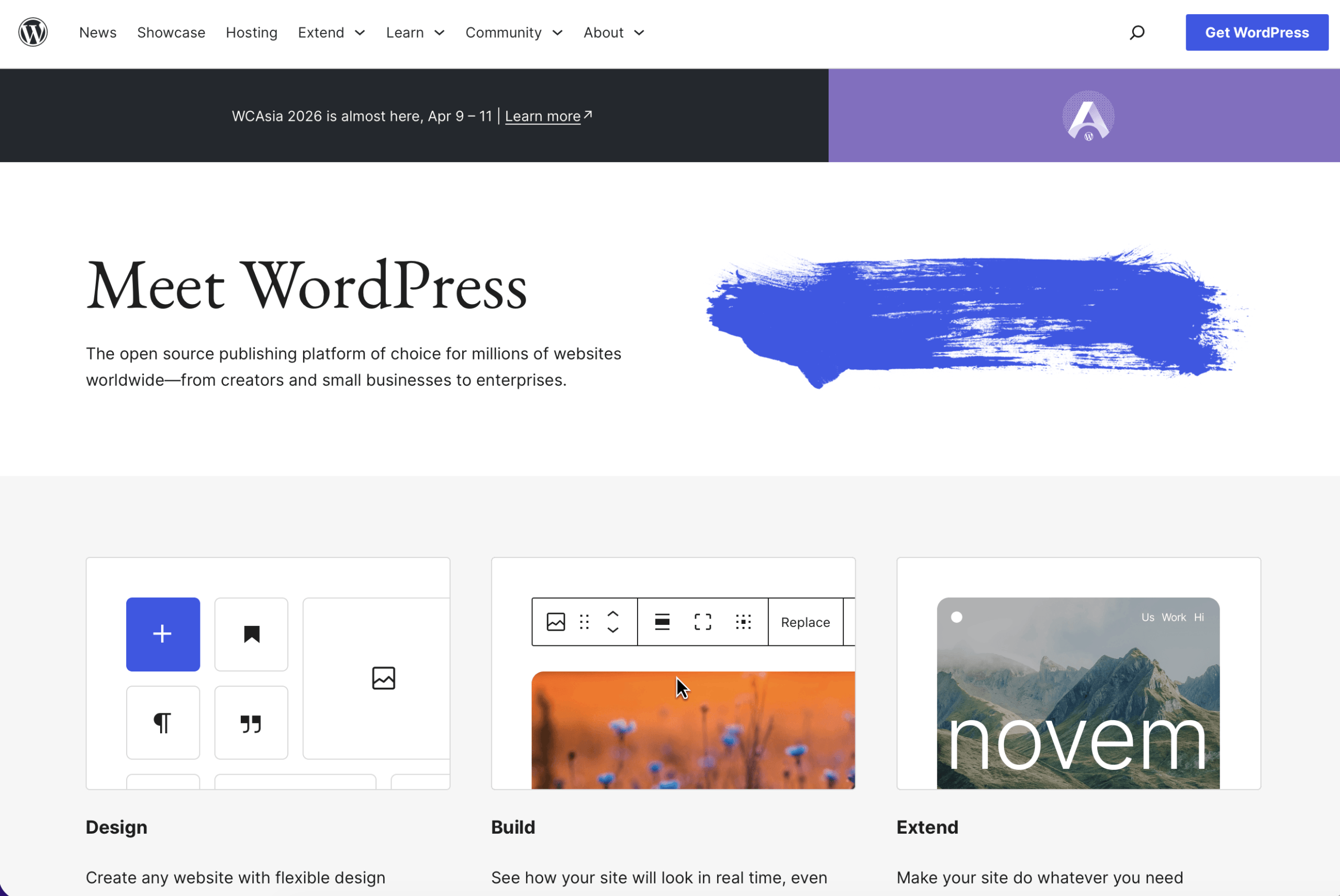
WordPress.org is the free, open-source version of WordPress that you download and install on your own hosting account. This is what most web designers, developers, and serious website owners use. It's what this guide covers.
When most people say "I have a WordPress site," they mean WordPress.org installed on their own hosting. That's what we're setting up here.
What You Actually Need
Setting up a WordPress site requires three things:
A domain name
This is your web address. The thing people type into their browser to find you. For example, freelancestud.io is a domain name.
Web hosting
This is the service that stores your website files and makes them available on the internet. Think of it like renting space on a server so your site is always accessible.
Wordpress itself
The free software that powers your website. Most hosting providers install this for you automatically.
That's it. Once you have all three, you have a website.
step 1
Choose Where to Get Your Domain and Hosting
The easiest way to get started is to get your domain name and your hosting from the same place. It keeps everything in one account, and you don't have to worry about connecting anything together. Most providers make this simple with bundled packages.
Here are four reliable options, each with slightly different strengths:

Namecheap (namecheap.com)
Namecheap is known for affordable pricing and transparent renewal rates (some hosts offer low intro prices that jump up significantly after the first year — Namecheap is pretty consistent). They include free domain privacy protection, which hides your personal contact information from public records. A solid, no-frills choice that's popular with developers and designers.

GoDaddy (godaddy.com)
GoDaddy is the largest domain registrar in the world and one of the most recognizable names in web hosting. They frequently run promotions and sales on first-year plans. Their interface is beginner-friendly and their customer support is easy to reach. Good choice if you want something widely trusted with lots of help resources available.

Bluehost (bluehost.com)
Bluehost is one of the hosting providers officially recommended on WordPress.org, which says a lot. Their plans include a free domain name for the first year and one-click WordPress installation that gets you up and running in minutes. They have 24/7 support and a very beginner-friendly interface. If you've never done any of this before, Bluehost is probably the easiest starting point.
SiteGround (siteground.com)
SiteGround is known for better performance and customer support than most budget hosts. It costs a little more than Bluehost but delivers noticeably faster load times and a more polished experience. Also officially recommended on WordPress.org. If you want a step up in quality from day one and don't mind paying a little more for it, SiteGround is worth it.
Not sure which one to pick? For a complete beginner, GoDaddy or Bluehost are the simplest starting points. For someone who wants better performance right away, go with NameCheap or SiteGround. You really can't go wrong with any of the four.
Step 2
Register Your Domain Name
Once you've chosen your provider, the first thing to do is find and register your domain name. Your domain name is your address on the internet, so it's worth spending a few minutes thinking about it before you buy.
Tips for choosing a good domain name:
- Keep it short and easy to remember
- Avoid hyphens and numbers if you can
- Use your name, your business name, or something that describes what you do
- Try to get a .com if possible since it's the most recognized extension, but .co, .io, and .net are all perfectly fine too
How to register your domain:
- Go to your chosen provider's website
- Type your desired domain name into their search bar
- If it's available, add it to your cart
- Bundle it with a hosting plan (most providers walk you through this together)
- Create an account and complete the purchase
That's it. You now own your domain name and your hosting is set up.
Step 3
Install WordPress
Here's the good news. All four of the providers above make WordPress installation incredibly easy. You don't need to download files, configure databases, or do anything technical. It's usually just a few clicks.
On Bluehost:
1. Log into your Bluehost account
2. Go to My Sites
3. Click Create Site
4. Follow the prompts — enter your site name and tagline
5. Bluehost installs WordPress automatically
On SiteGround:
1. Log into your SiteGround account
2. Go to Websites
3. Click New Website
4. Choose your domain
5. Select Start New Website, then choose WordPress
6. Enter a username and password for your WordPress admin account
7. Click Continue — SiteGround installs WordPress automatically
On Namecheap and GoDaddy:
Both providers have a one-click WordPress installer inside their hosting control panel (usually called cPanel).
Log into your account, find the WordPress installer, choose your domain, and follow the prompts. It takes about two minutes.
During installation, you'll be asked to create a WordPress username and password. Save these somewhere safe — you'll use them every time you log into your site.
Step 4
Log Into Your WordPress Dashboard
Once WordPress is installed, you can log in at:
yourdomain.com/wp-admin
(Replace yourdomain.com with your actual domain name.)
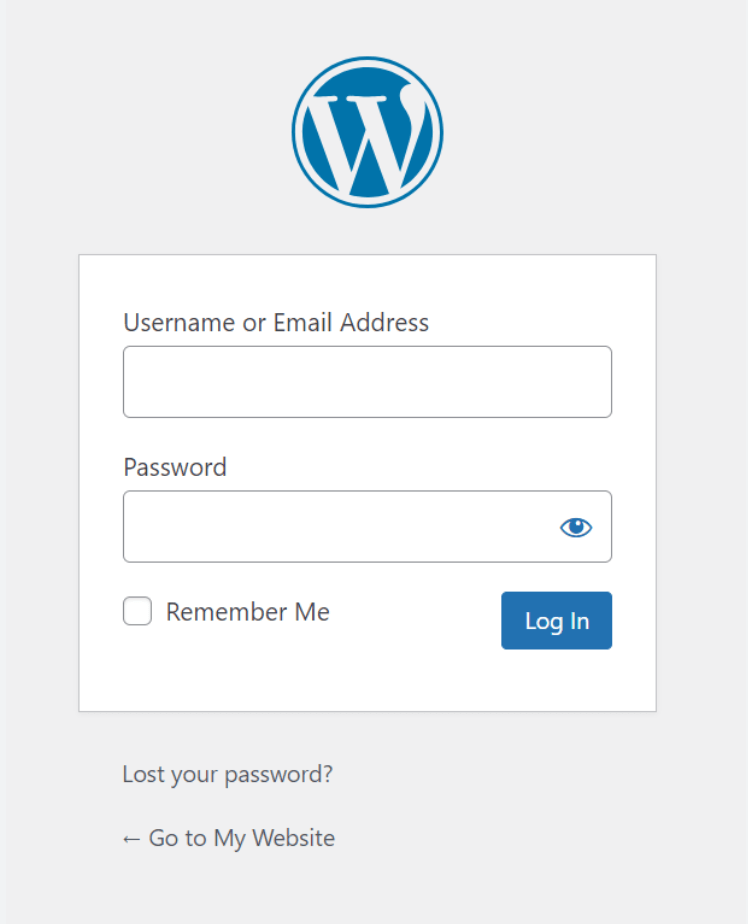
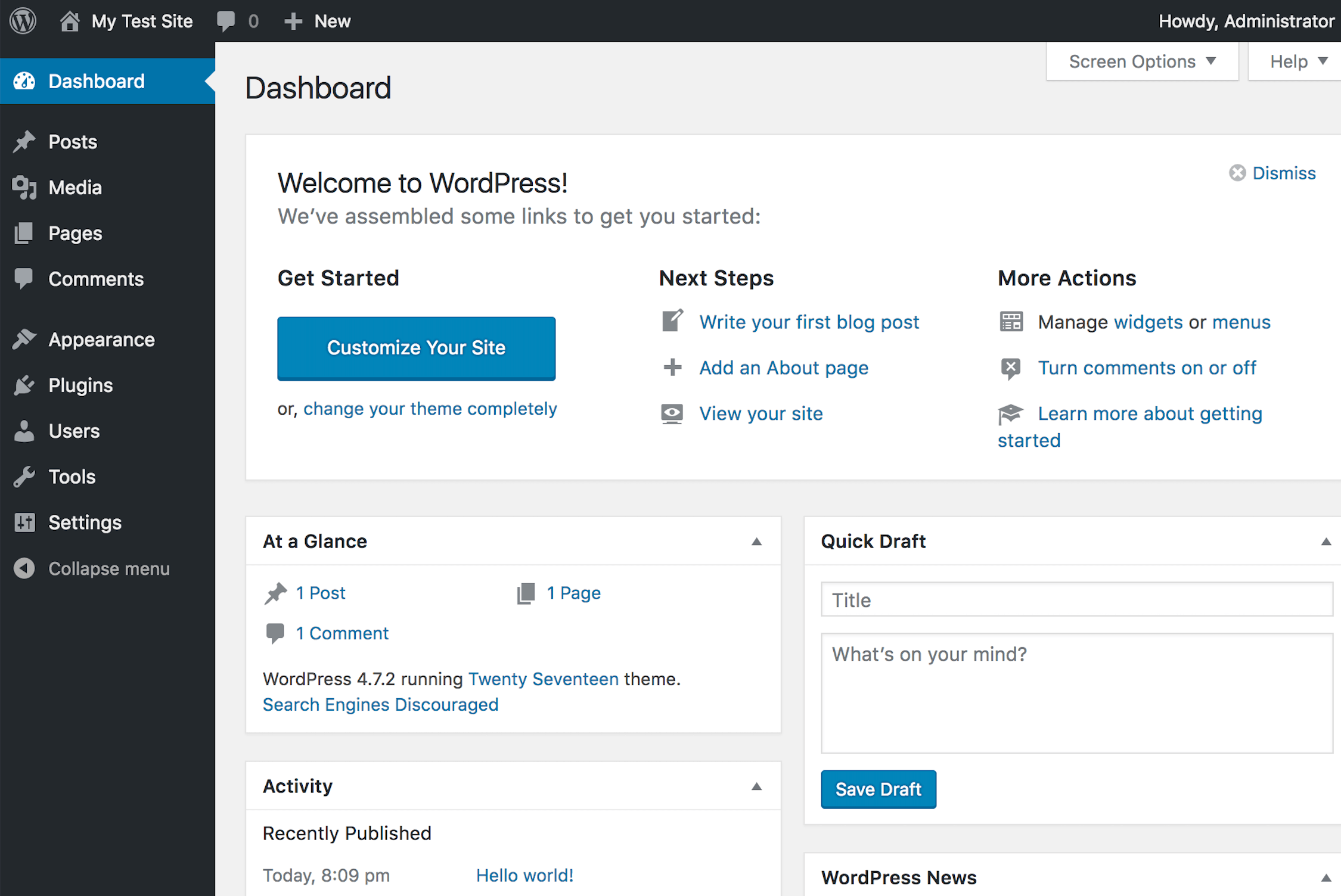
Enter the username and password you created during installation. This takes you to your WordPress dashboard — the control panel for your entire website.
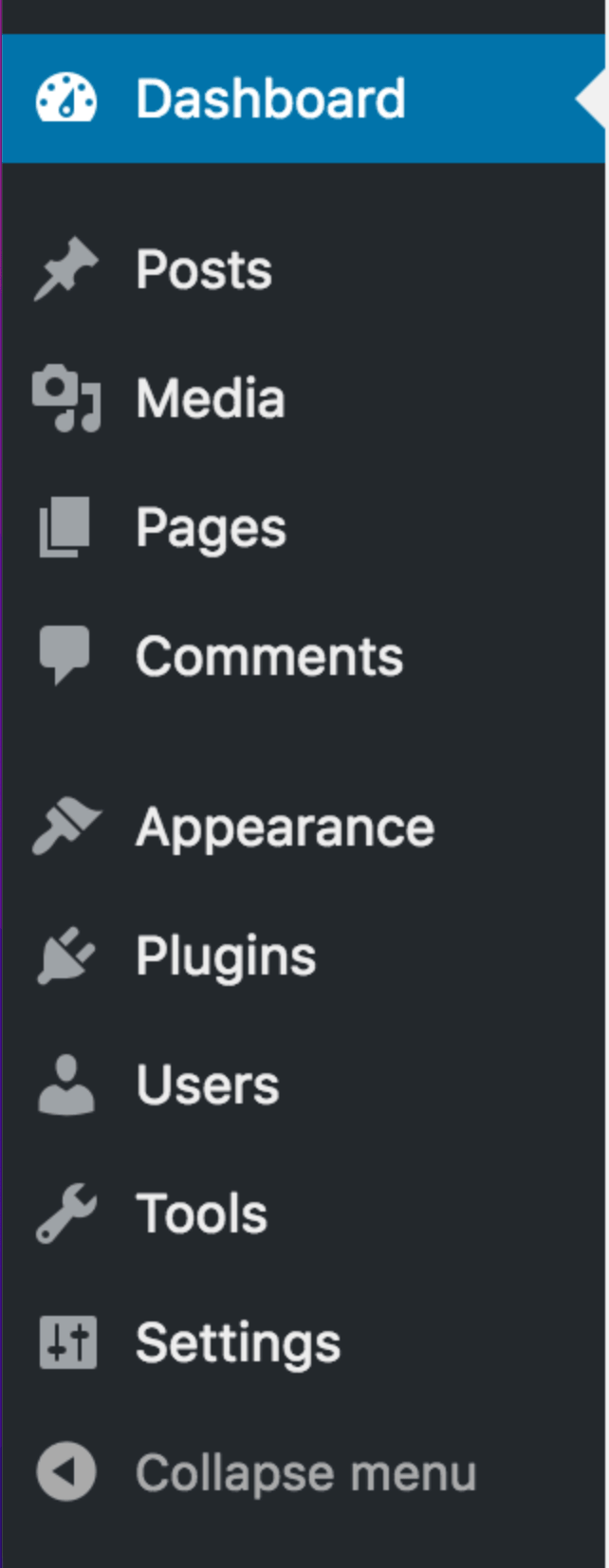
Take a minute to look around. On the left side you'll see the main navigation:
- Posts — for blog articles
- Pages — for static pages like About, Contact, and Services
- Appearance — where you choose and customize your site's design (called a theme)
- Plugins — where you add extra functionality to your site
- Settings — where you configure basic site options
Don't worry about memorizing all of this right away. You'll get comfortable with it quickly just by using it.
Step 5
Choose a Theme
A WordPress theme controls how your website looks. There are thousands of free and paid themes available, ranging from simple and minimal to complex and feature-rich.
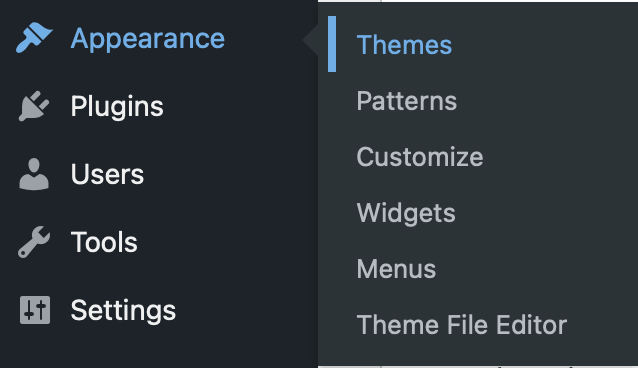
To install a free theme:
- Go to Appearance in your dashboard
- Click Themes
- Click Add New
- Browse or search for a theme you like
- Click Install, then Activate
Some popular free themes for portfolios and freelancer sites include Astra, Kadence, and GeneratePress. All three are fast, flexible, and widely used by designers and developers.
If you want a more polished, premium look, paid themes from Envato, ThemeForest, or Elegant Themes are worth looking at. They typically cost between $30 and $100 for a one-time purchase.
Don't spend too much time on this right now. Pick something clean and simple and move on. You can always change your theme later without losing any of your content.
Step 6
Install Essential Plugins
Plugins add functionality to your WordPress site. Think of them like apps for your website. There are plugins for everything — contact forms, SEO, security, backups, speed optimization, and much more.
Yoast SEO or Rank Math — Helps you optimize your site for search engines so people can find you on Google. Both have solid free versions.
WP Forms or Contact Form 7 — Adds a contact form to your site so visitors can reach you. Contact Form 7 is free and simple. WP Forms has a more user-friendly interface.
UpdraftPlus — Automatically backs up your website so you never lose your work. The free version is excellent.
Wordfence Security — Adds basic security protection to your site. The free version does a good job of keeping things locked down.
To install a plugin:
- Go to Plugins in your dashboard
- Click Add New
- Search for the plugin name
- Click Install Now, then Activate
Step 7
Create Your Essential Pages
Home Page
The first thing visitors see. Should clearly communicate who you are and what you do.
About Page
Your story, your background, why clients should work with you.
Services Page
What you offer, how you work, and ideally some indication of pricing or project scope.
Portfolio or Work Page
Examples of what you've done. Especially important for designers, developers, and other creative freelancers.
Contact Page
How people can reach you. Embed your contact form here.
To create a page:
- Go to Pages in your dashboard
- Click Add New
- Give your page a title
- Add your content using the WordPress block editor
- Click Publish when you're ready
Step 8
Set Up Your Navigation Menu
Once your pages are created, you'll want to add them to your site's navigation menu so visitors can find them.
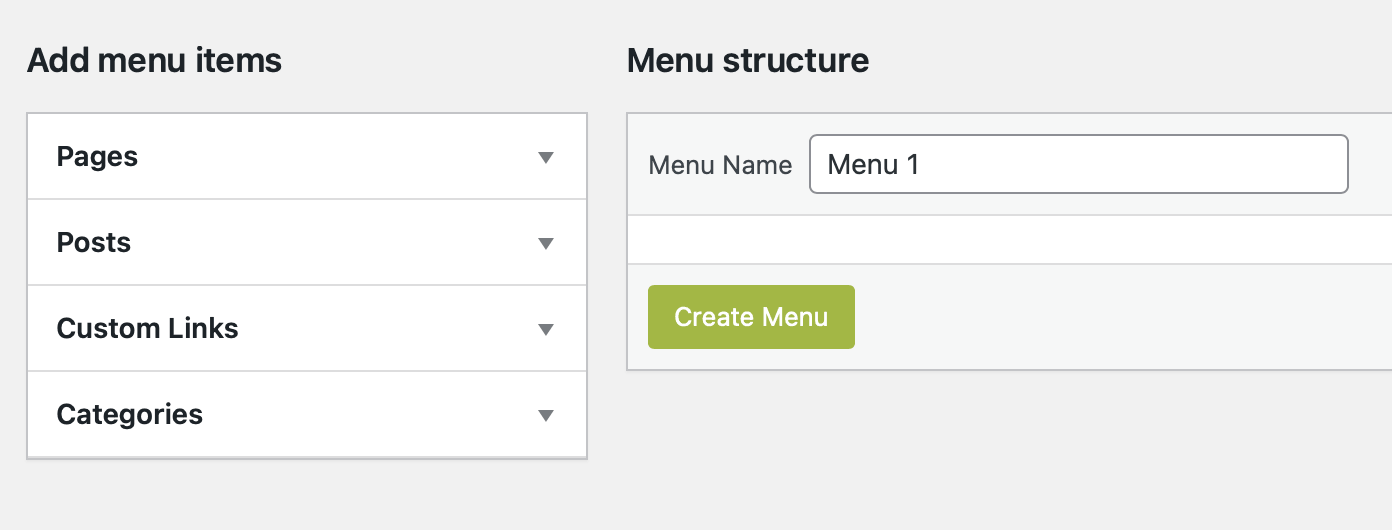
- Go to Appearance in your dashboard
- Click Menus
- Click Create a New Menu and give it a name
- Check the box next to each page you want to include
- Click Add to Menu
- Drag and drop the items into the order you want
- Check the box to display the menu in your Header location
- Click Save Menu
Now visitors can navigate between your pages using the menu at the top of your site.
Step 9
Connect a Professional Email Address
Using a Gmail or Yahoo address for your business can look unprofessional. It's worth setting up an email address at your own domain — something like hello@yourdomain.com or yourname@yourdomain.com.
Many hosting providers include free email hosting with your plan. Check your hosting account's control panel for an Email section and follow their instructions to create your first email address.
Once created, you can access your new email through your hosting provider's webmail interface, or connect it to Gmail, Apple Mail, or Outlook using the IMAP settings your host provides.
You're Up and Running!
At this point you have:
• A domain name that's yours
• Hosting that keeps your site online
• WordPress installed and ready to go
• A theme that makes it look good
• Essential plugins keeping things running smoothly
• Your key pages created
• A professional email address
That's a real website. Built by you, on your own server, under your control.
What About Running Your Freelance Business From WordPress?
Here's something worth knowing. Since your website is already on WordPress, your entire freelance business can live there too — not just your portfolio.
Freelance Studio is a WordPress plugin that adds complete business management to your existing WordPress site. Clients, projects, invoicing, time tracking, contracts with e-signatures, proposals, scheduling, and reporting. All of it inside the same dashboard you just set up.
No extra login. No third-party platform. No handing your business data to someone else's server.
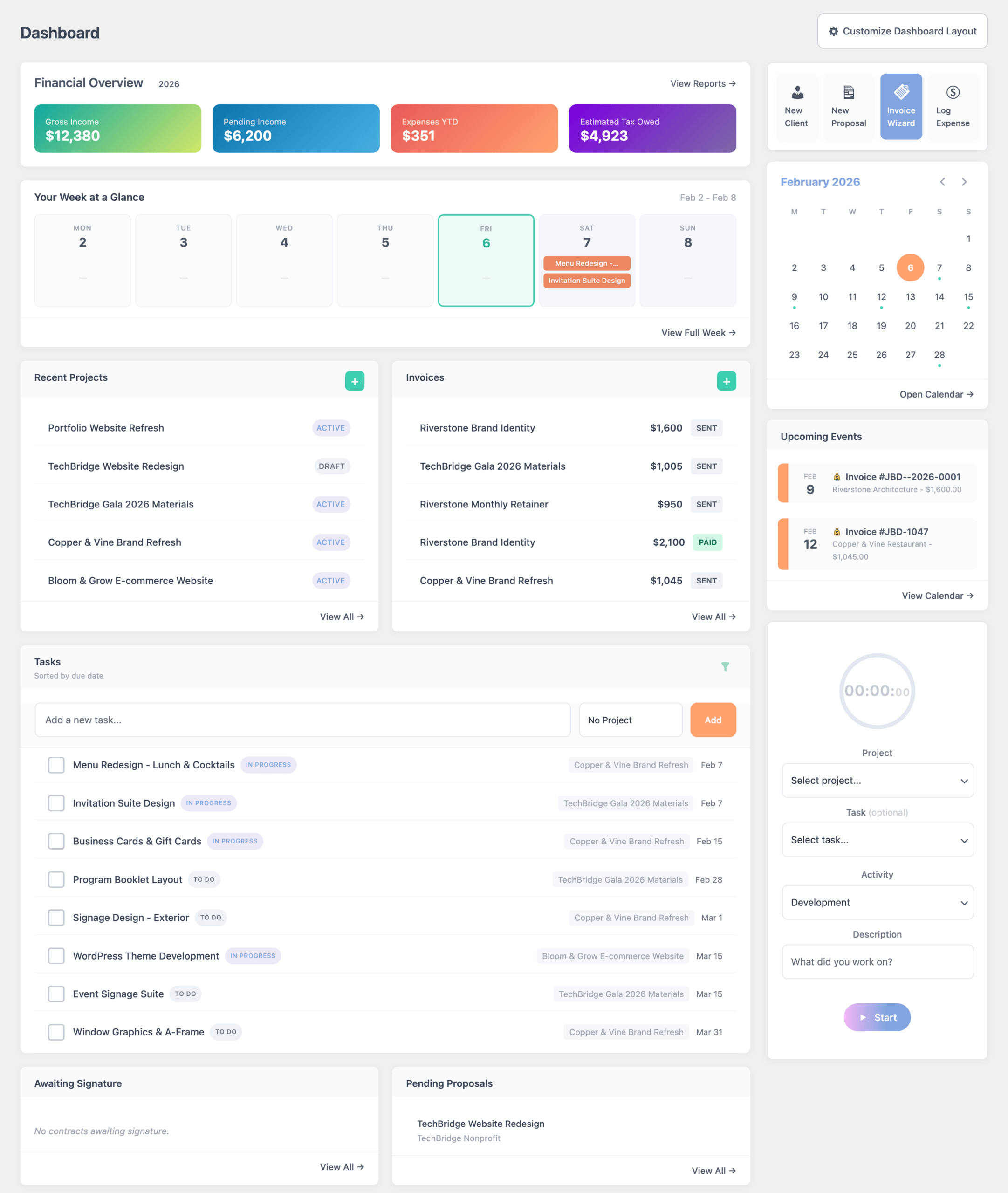
If you're setting up WordPress as the home base for your freelance business, it makes sense to run your business from it too.
Freelance Studio has a free version with all the basic tools needed to run a project-based business. Download it from your WordPress plugin directory or at freelancestud.io.
2026 © Freelance Studio Ltd. Co. All rights reserved.